How to Compress Images in Figma
Large images can quickly make exports heavier than they need to be. But compressing them often means exporting from Figma, opening another tool, compressing the files, and bringing them back into your workflow.
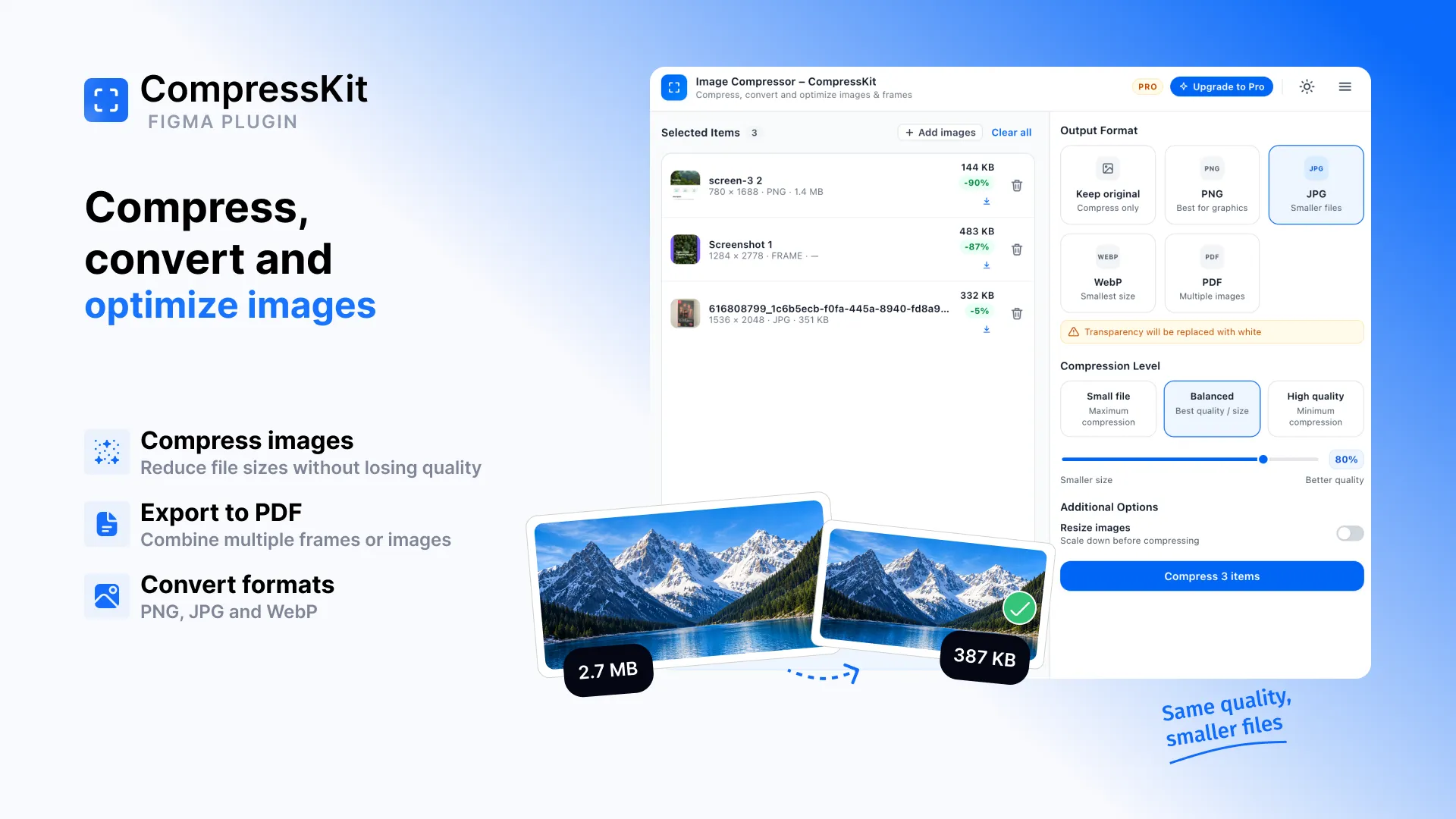
CompressKit makes image compression possible directly from Figma.
Compress PNG, JPG and WebP in Figma
With CompressKit, select your images or frames, choose an output format and compression level, and compress them in one batch.
You can:
- Compress PNG, JPG and WebP images
- Convert between image formats
- Resize images before compression
- Compress multiple images and Figma frames at once
- Export multiple images or frames as a PDF
- Download individual files or everything as a ZIP
You can choose Small file, Balanced, or High quality depending on whether file size or image quality matters most.
Why compress images before using them?
Smaller image files can make websites and digital projects easier to work with and reduce unnecessary file size. Instead of manually processing every image in a separate tool, CompressKit keeps the workflow together.
Your images and Figma content are processed locally for compression rather than being uploaded to Code By Nordic's servers.
How to compress images with CompressKit
Select your images or frames in Figma, open CompressKit, choose your format and compression level, then click Compress.
That's it.
CompressKit includes 5 free compression runs with every feature included. Pro unlocks unlimited compression runs.
Ready to compress your images?
Compress, resize and convert images directly inside Figma.