How to Create Perspective Mockups in Figma (Without Photoshop)
Want to place your app screenshot into a phone mockup or transform an image to fit a tilted screen in Figma? You don't need Photoshop or complicated 3D software.
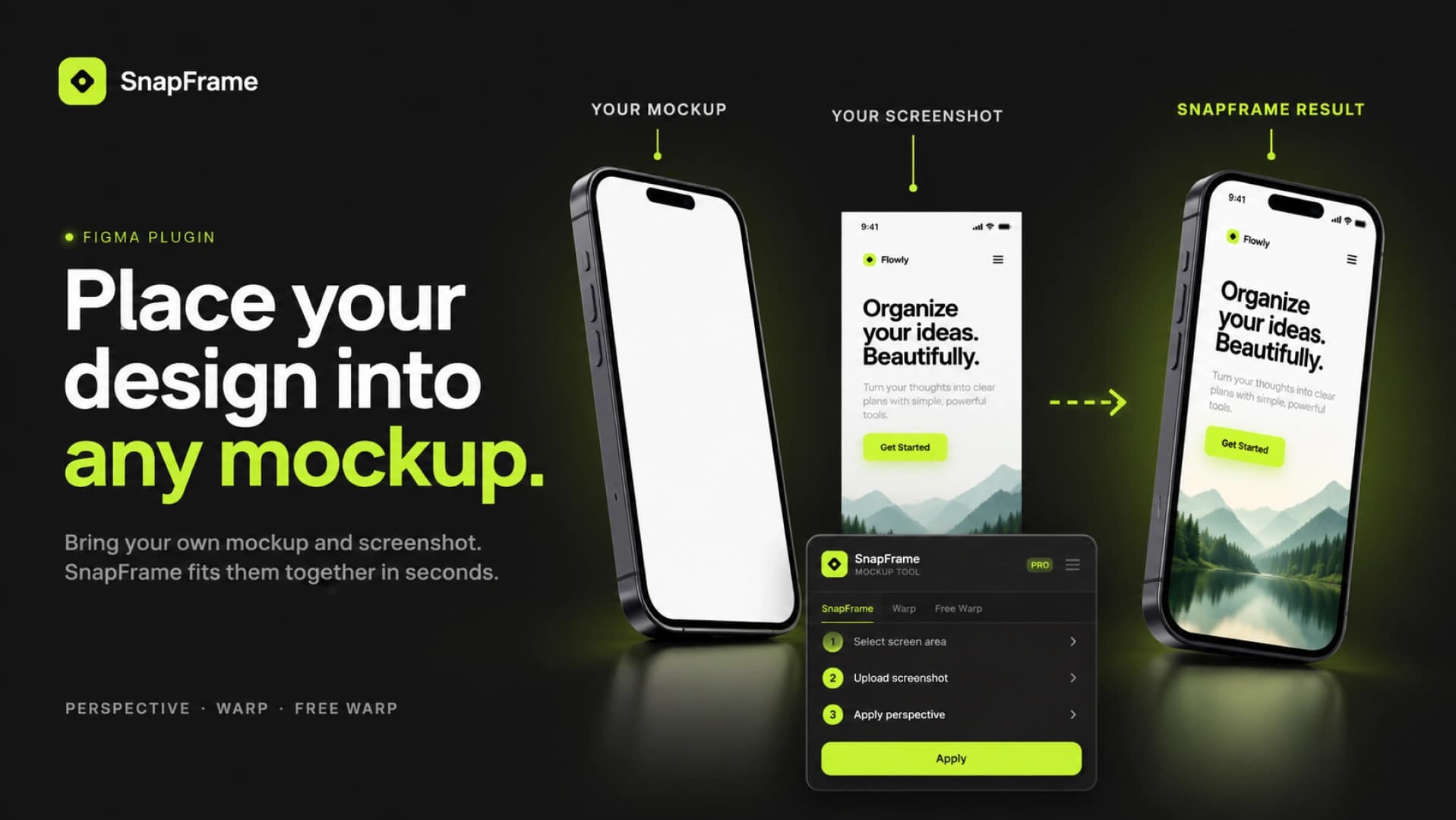
With Snap Frame, you can apply perspective transformations directly in Figma using your own mockups and screenshots.
Watch Snap Frame in Action
How to Place a Screenshot Into a Mockup in Figma
- Choose your mockup. Import your own phone mockup, laptop image, or any design with a visible screen area.
- Select the screen area. Draw a four-point vector around the area where you want your screenshot to appear.
- Upload your screenshot. Open Snap Frame and select the image you want to place inside your mockup.
- Apply perspective. Click Apply. Snap Frame transforms your screenshot to match the selected perspective.
Can You Warp or Bend Images in Figma?
Yes. Snap Frame includes three tools:
- SnapFrame: Fit screenshots into your own perspective mockups.
- Warp: Tilt images using perspective presets and adjustable angles.
- Free Warp: Bend, curve, or reshape images using a draggable mesh.
Does Snap Frame Include Phone Mockups?
No. Snap Frame works with your own mockups, giving you flexibility without relying on a predefined mockup library.
Is Snap Frame Free?
Yes! Try all three tools with 5 free uses. For unlimited access, Snap Frame Pro costs $4.99/month.
Start Creating Perspective Mockups
Stop switching between Figma and Photoshop just to position a screenshot. Create perspective mockups directly inside Figma using your own designs.
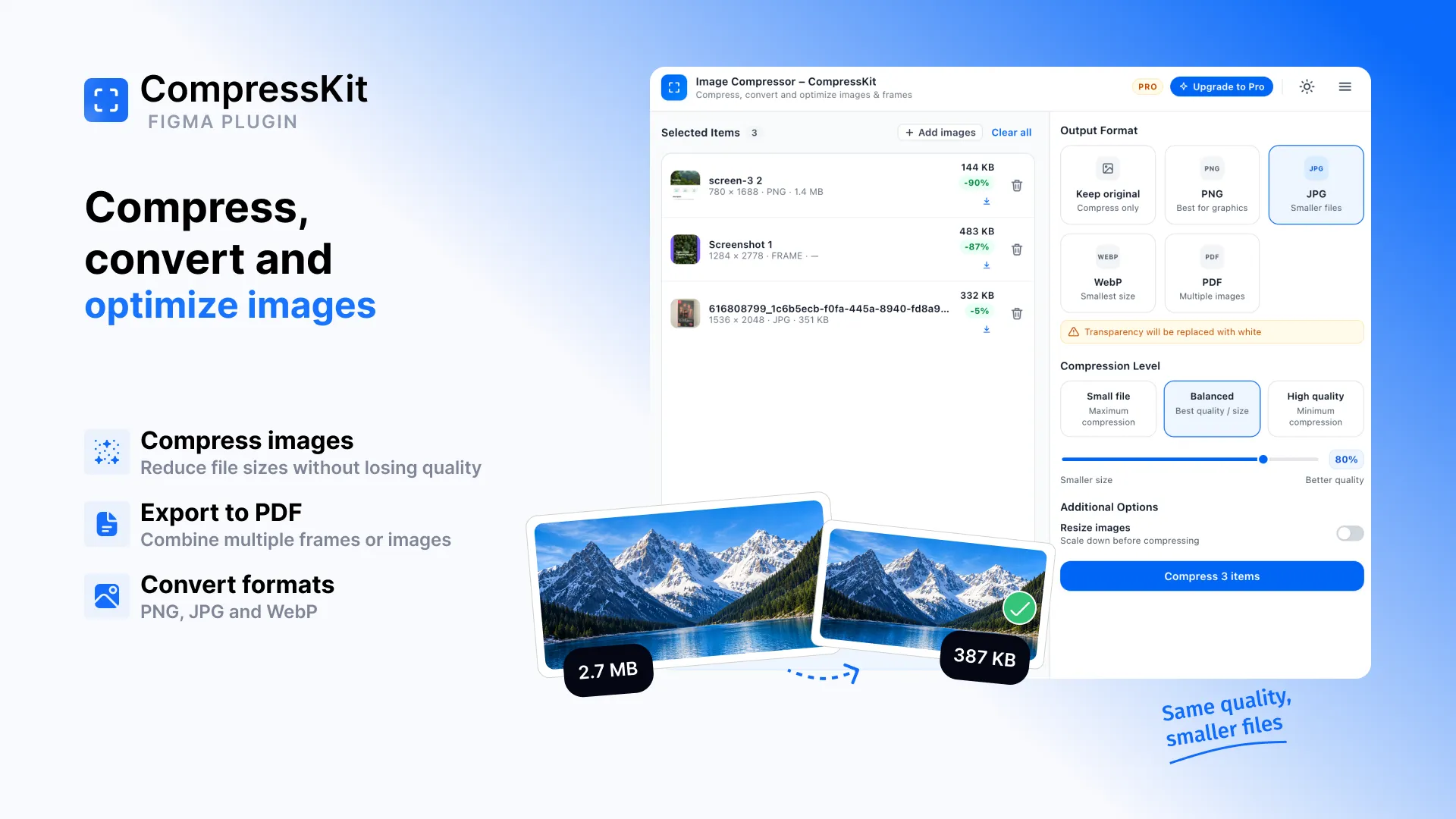
How to Compress Images in Figma
Large images can quickly make exports heavier than they need to be. But compressing them often means exporting from Figma, opening another tool, compressing the files, and bringing them back into your workflow.
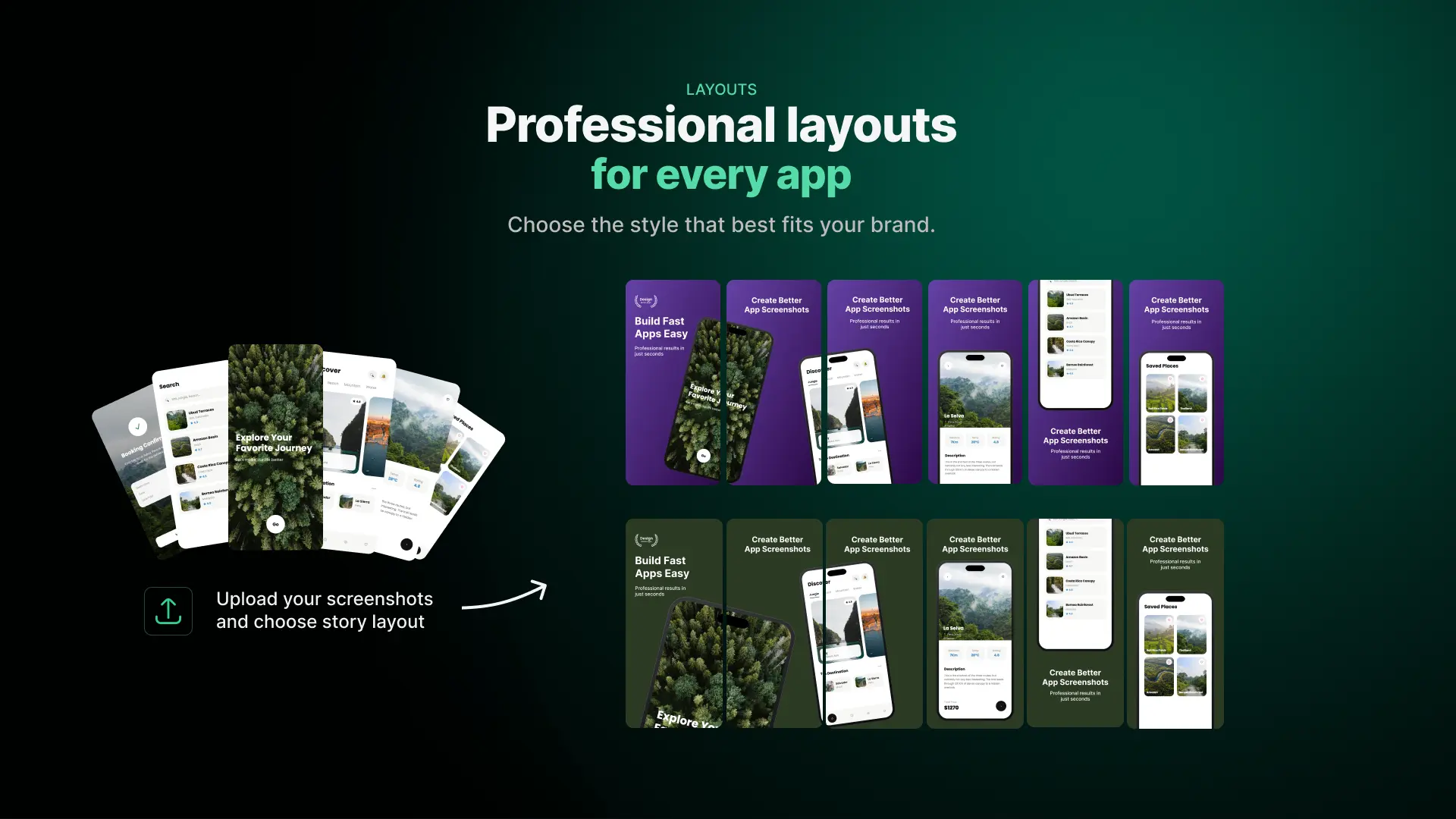
How to Create App Store Screenshots in Figma
Creating a complete App Store screenshot set manually can involve repeating the same layout, device and background work across multiple screens. App Store Screenshot Studio simplifies this process directly inside Figma. Upload your app screenshots, choose a Story Layout and background, and generate a complete screenshot story in seconds. In this guide, we'll walk through the actual workflow.