 Figma guide · Snap Frame
How to Create an iPhone Mockup in Figma (Without Photoshop)
Turn a flat app screenshot or Figma frame into a realistic iPhone mockup in three clicks with Easy Mockup. No Photoshop, no mockup files to hunt down.
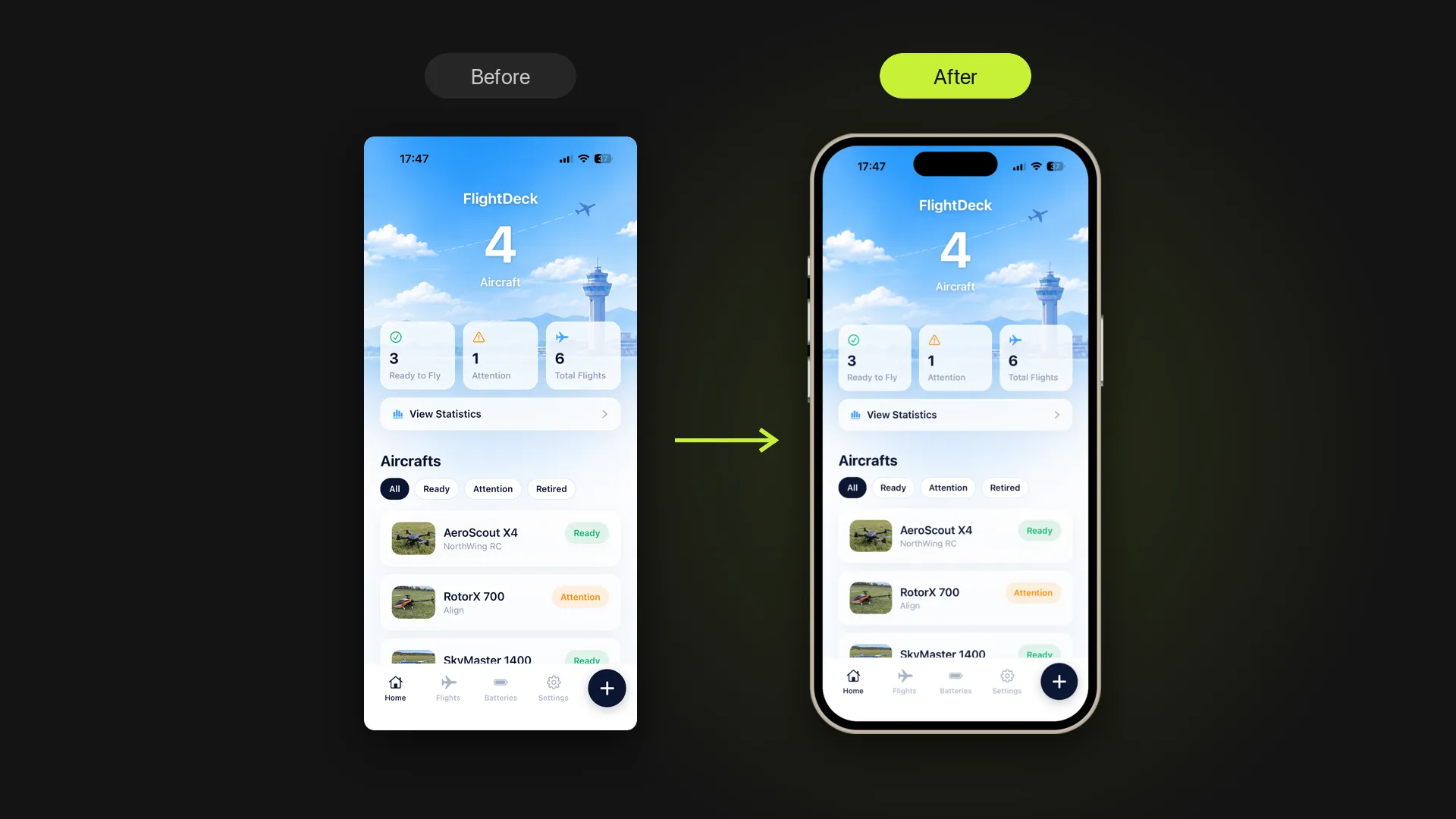
A flat screenshot rarely sells an app. Putting it in an iPhone frame usually means downloading a PSD, opening Photoshop and lining up smart objects by hand. Figma has no built-in device frames, and community mockup files need careful masking to fit your screen. Easy Mockup, part of Snap Frame, creates a clean iPhone mockup in Figma for you.
How to Create an iPhone Mockup in Figma
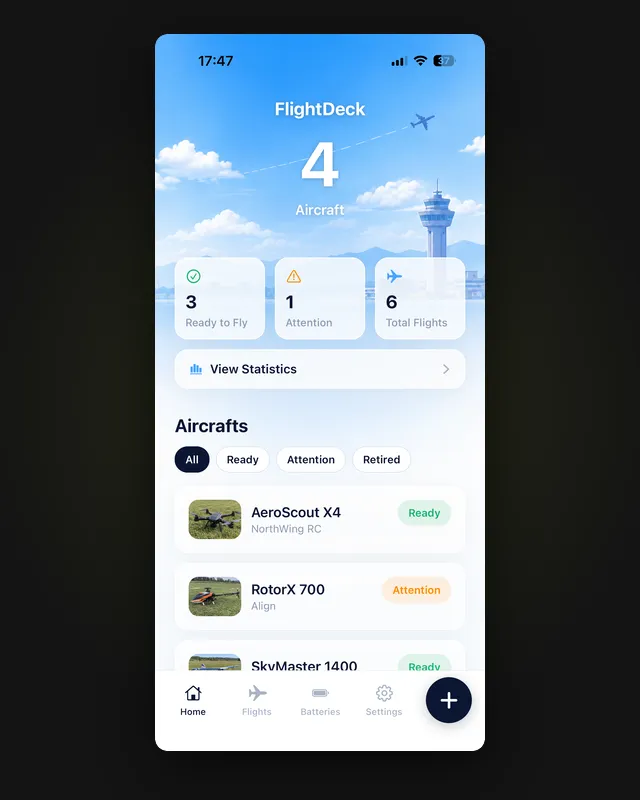
Upload a screenshot or select a frame
Open Snap Frame and go to Easy Mockup. Upload an app screenshot, or select the Figma frame you designed.
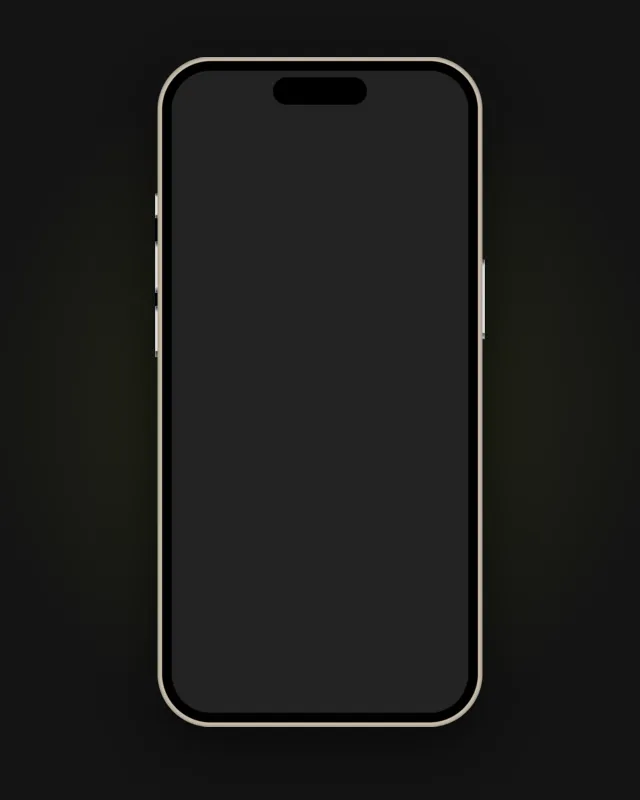
Choose iPhone
Pick iPhone from the Easy Mockup device list. No masking or manual resizing needed.
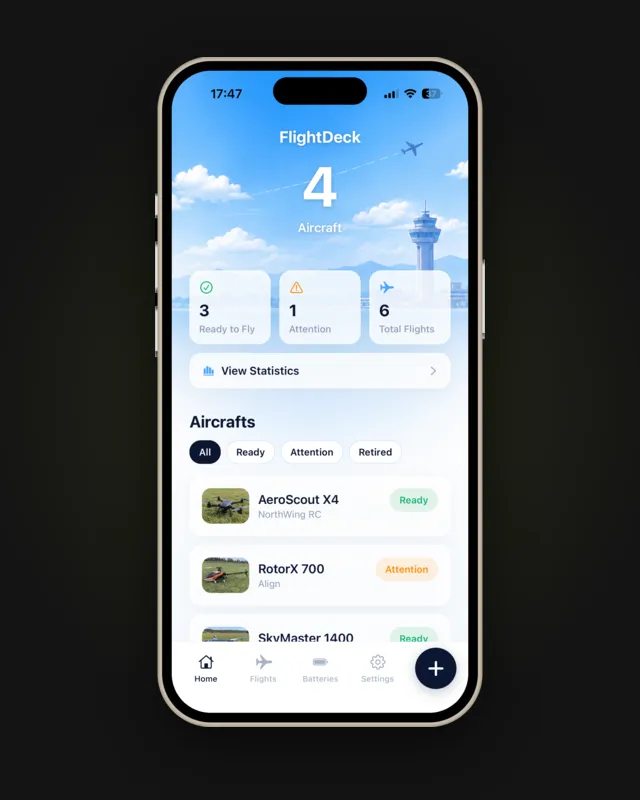
Click Create Mockup
Snap Frame adds the finished iPhone mockup to your canvas, ready to export or drop into a layout.
Need more than a phone? Easy Mockup also creates iPad, MacBook, Monitor, Browser and Watch mockups the same way.
Need an Angled iPhone Mockup?
Easy Mockup creates front-facing device mockups. To place a screenshot on a tilted phone in a lifestyle scene, follow our guide on how to create perspective mockups in Figma.
Is Snap Frame Free?
Yes. You get 5 free uses across every tool. Snap Frame Pro is $4.99/month for unlimited uses and batches of up to 10 images.
Free on Figma Community
Create your first iPhone mockup
Install Snap Frame from Figma Community and turn any screenshot into a device mockup in seconds.
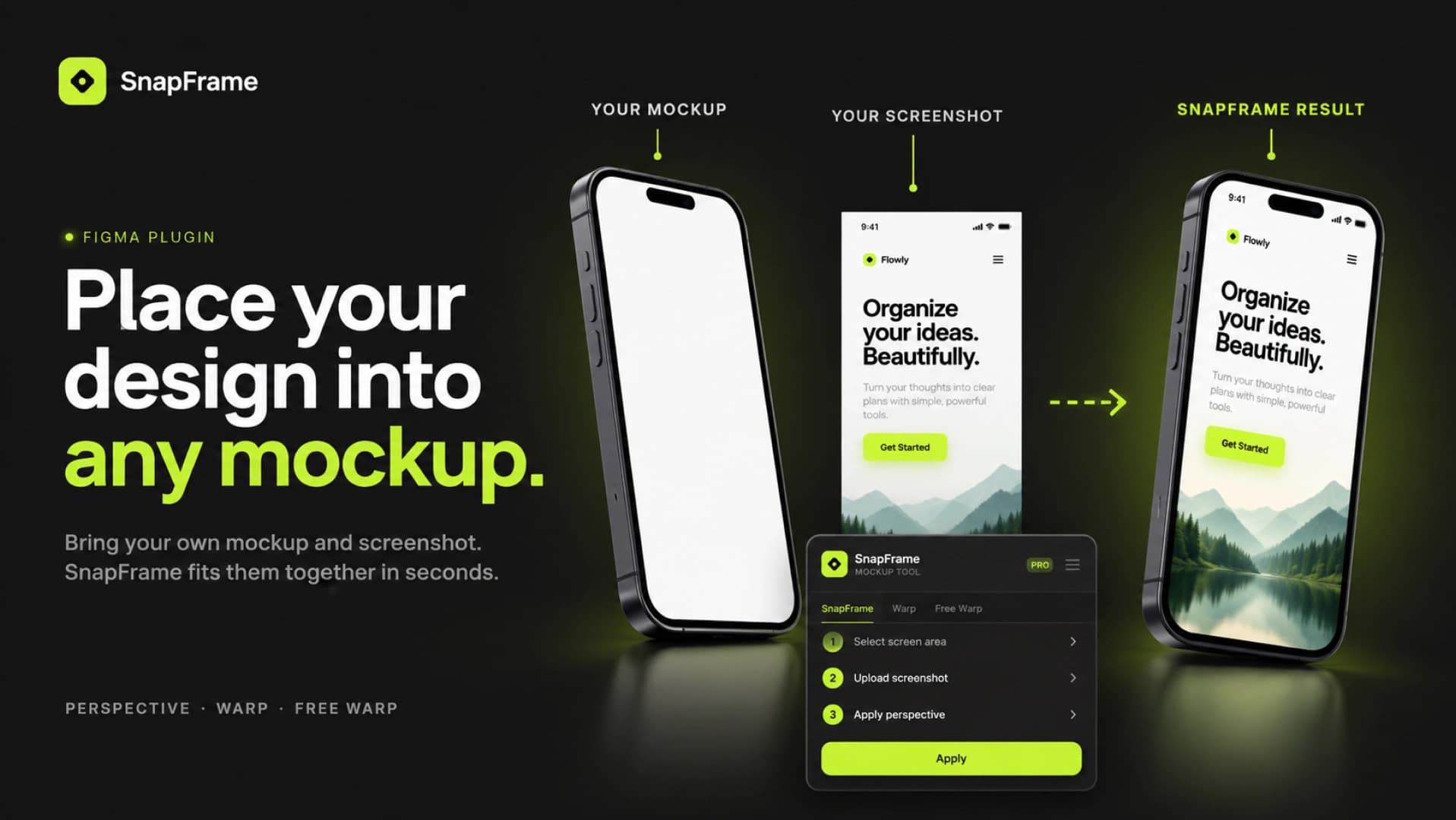
How to Create Perspective Mockups in Figma (Without Photoshop)
Place a screenshot into any tilted phone, laptop or monitor mockup without leaving Figma. Four steps, no Photoshop, no 3D software.
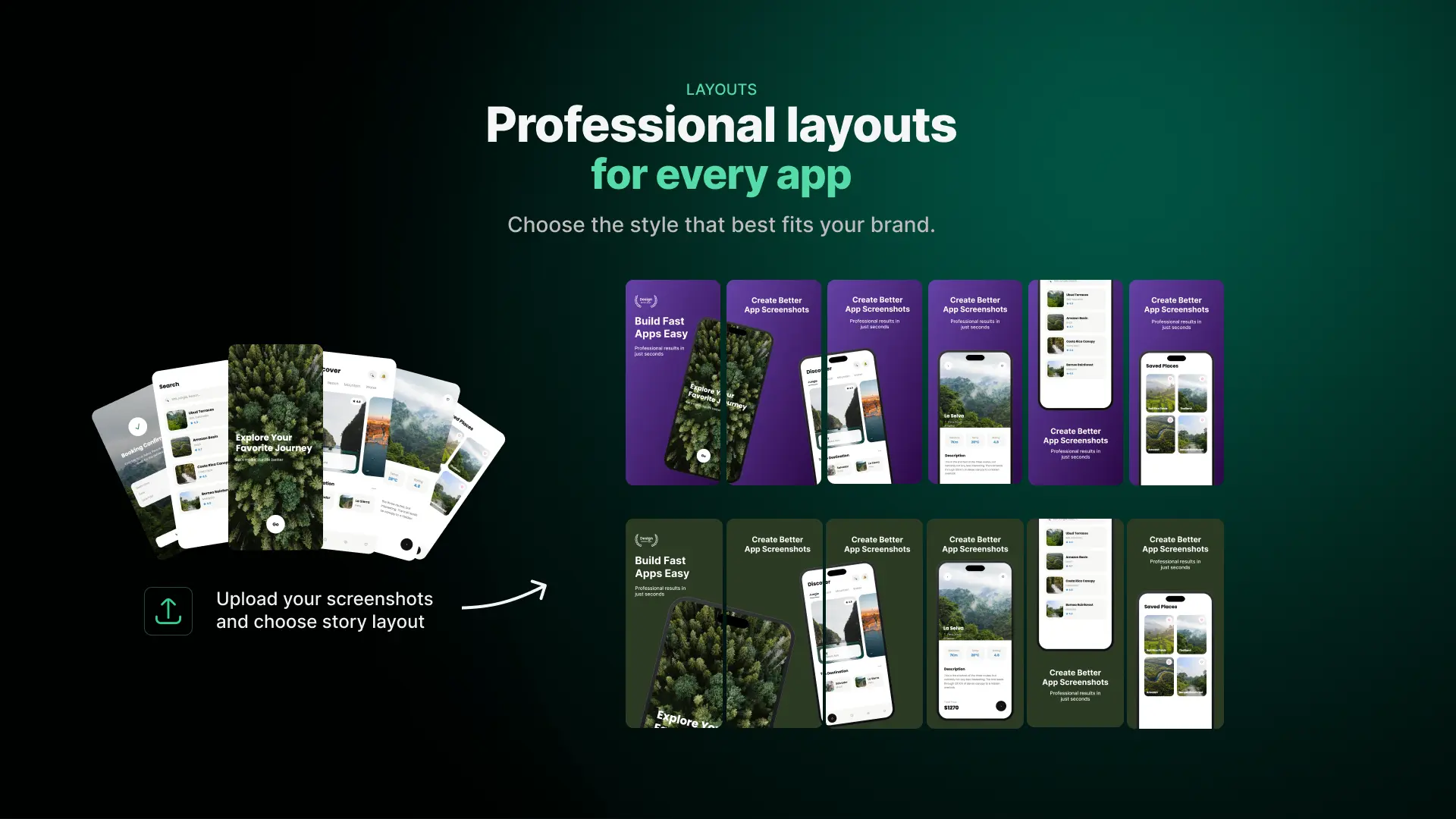
How to Create App Store Screenshots in Figma
Creating a complete App Store screenshot set manually can involve repeating the same layout, device and background work across multiple screens. App Store Screenshot Studio simplifies this process directly inside Figma. Upload your app screenshots, choose a Story Layout and background, and generate a complete screenshot story in seconds. In this guide, we'll walk through the actual workflow.